April 2026
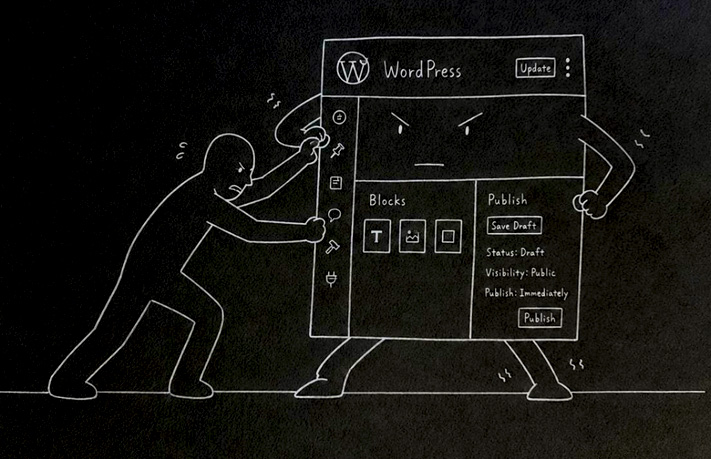
Nobody tells you this when you sign up to WordPress. The setup is harder than the writing. If you go in expecting to start blogging straight away, you will spend your energy fighting the interface instead of doing anything useful.
This post is what I wish someone had told me before I started.
Setup: on a laptop or desktop, not a phone!
This is the most important piece of advice in this post.
WordPress is designed around a mouse or trackpad. Many of the setup screens have small buttons, menus that disappear, and settings hidden behind multiple clicks. On a phone screen with a finger, this becomes genuinely difficult. The WordPress mobile app does not support most of the setup tasks at all.
If you do not have a laptop or desktop, see if you can borrow one for a couple of hours just for the initial setup. Once the blog is built, you can manage it from your phone. But getting it right at the start needs a proper screen and a pointer.
Sort the templates, before anything else
WordPress uses templates to control how your blog looks. Templates are like master layouts — they affect every page on your site at once. If you change the template later, after you have added pages and posts, things can look wrong or break.
The right order is: pick your theme first, then set up the templates particularly the header and footer, then add your site name, logo and contact details, and only then start adding pages and posts.
WordPress does not make this order obvious. It looks like you can just start writing. You can — but you will regret it.
Essential details do not live in one place
This catches most people. You would expect to go to one settings screen, fill in your name, add a logo, put in a contact email, and have it appear everywhere. That is not how WordPress works.
Your site name and tagline live in Settings > General. Your logo lives in the theme editor under the header template. Your contact details — if you want them in the footer — have to be added manually to the footer template. Each of these is a separate place. Each requires navigating to a different part of the dashboard.
Claude can help you think through what needs to go where, but you will need to add these things yourself. There is no shortcut.
Finding page URLs is not straightforward
When Claude asked for the URLs of uploaded files during the building of this blog, finding them required going into the media library, clicking on each file, and reading the URL from the right-hand panel. This is not something a novice would know to do.
Similarly, page URLs are not visible until you either publish the page or check the page settings. On a phone, finding these at all is difficult.
If Claude asks you for a URL and you are not sure where to find it, just say so. Often there is a way around it.
The navigation menu is the last thing to set up. Add your navigation menu (the links at the top of your site) after everything else is done. If you add it before your pages and sections exist, you are building navigation to nowhere.The navigation menu lives in Appearance > Editor, in WordPress. On a phone this is particularly hard to use. On a laptop it is manageable but still takes some patience.
What the WordPress app can do once setup is complete
Once the templates, navigation, and site identity are sorted on a laptop, the WordPress mobile app becomes genuinely useful. It is not capable of the setup work, but for the day to day running of a blog it covers a lot.
From the WordPress app on your phone you can write and edit posts and pages, add and change categories and tags, view your site statistics, check and moderate comments, and upload photos from your phone camera.
If Claude has already created a draft and pushed it to WordPress, you can read it, make small edits, and press publish all from your phone without opening a browser.
The things the app cannot do are template editing, navigation changes, and theme changes. Those need a browser on a laptop. But once you have set those up properly once, you should rarely need to go back to them.
You can get help and support for the WordPress mobile app at apps.wordpress.com/support/mobile
What Claude can handle (so you don’t have to)
To reduce the time you spend in these difficult parts of WordPress, Claude can create all your pages and posts from conversation and push them directly to your blog, set up your categories and tags without you touching the WordPress dashboard, update the content of any page or post from a conversation, and check what is on your site and troubleshoot problems.
The parts that still require you — templates, navigation, logo, uploading files — are genuinely fiddly. Budget more time than you expect. Do them on a laptop. Do them before you start writing.
Where to get help with WordPress
WordPress.com has its own getting started guide with video tutorials at wordpress.com/support/getting-started-with-wordpress-com — this covers everything from setting up your account to launching your first page, in plain language.
It also has its own free online course at learn.wordpress.org
WPBeginner at wpbeginner.com is an independent site with hundreds of free step-by-step guides and videos. Genuinely useful and aimed at people with no technical background.
If WordPress feels like too much (alternatives)
WordPress is not the only option. Two simpler alternatives are worth knowing about.
Squarespace is built around a much simpler visual editor. Everything — site name, logo, contact details, navigation — is managed from one place. Around £15 a month. The trade-off is no Claude connector, so you would draft in Craft and copy into Squarespace yourself. More manual but much simpler to set up.
Ghost is a clean, minimal platform designed specifically for writers. Easier than WordPress to set up. Around £9 a month. Same trade-off — no direct Claude integration, so you draft in Craft and publish manually.
Both work perfectly well alongside Claude and Craft as your drafting layer. You just lose the ability to push content directly from a conversation.
The honest summary
WordPress is powerful and once it is set up it runs well. But the setup is not designed for novices, not designed for phones, and not designed for people with limited time or energy.
Go in with realistic expectations, use a laptop for the setup, sort the templates and site identity before anything else, and let Claude handle as much of the content side as possible so your energy goes where it matters.
This post came directly from the experience of building the blog. Every frustration described happened 😦
 Thinking At Half Speed
Leave a comment